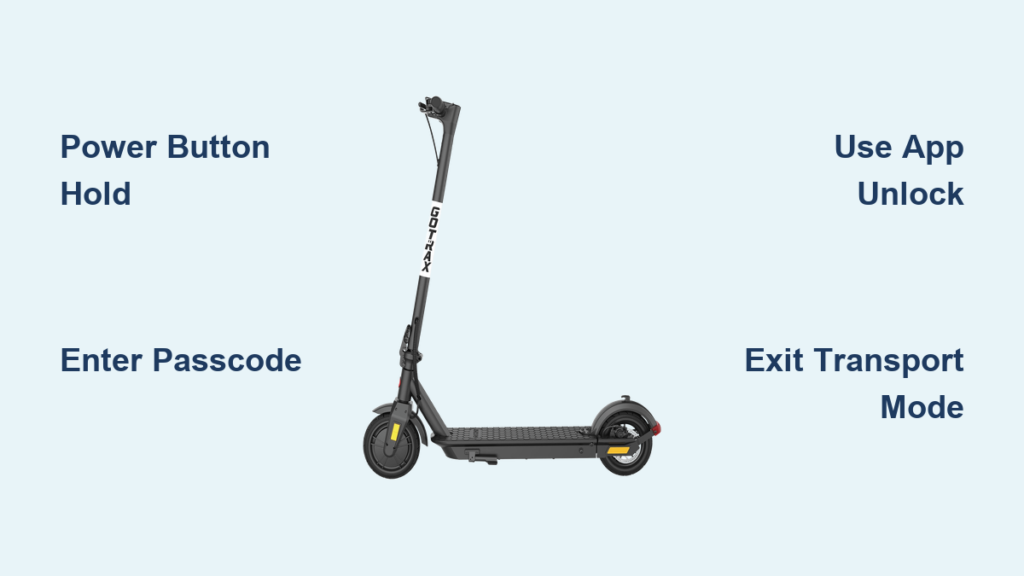
You just stepped outside to ride your GOTRAX scooter, pressed the power button, and nothing happened. No display, no motor response, or worse: the screen lights up with a padlock icon, blocking you from riding. You’re not broken; you just need to know how to unlock a GOTRAX scooter properly. Whether it’s a simple power hold, a forgotten passcode, or Bluetooth pairing issues, this guide covers every unlock method across all major models, including the GXL V2, XR Ultra, G3, G4, and G Pro.
Most problems stem from misunderstanding the unlock system your model uses. Some scooters turn on with a single long button press. Others require a 3-digit code. Premium versions use smartphone apps. And nearly all new units ship in Transportation Mode, which disables the motor until activated. We’ll walk you through each scenario, troubleshoot common failures, and show you how to reset, disable, or customize your lock settings.
Identify Your Unlock Type
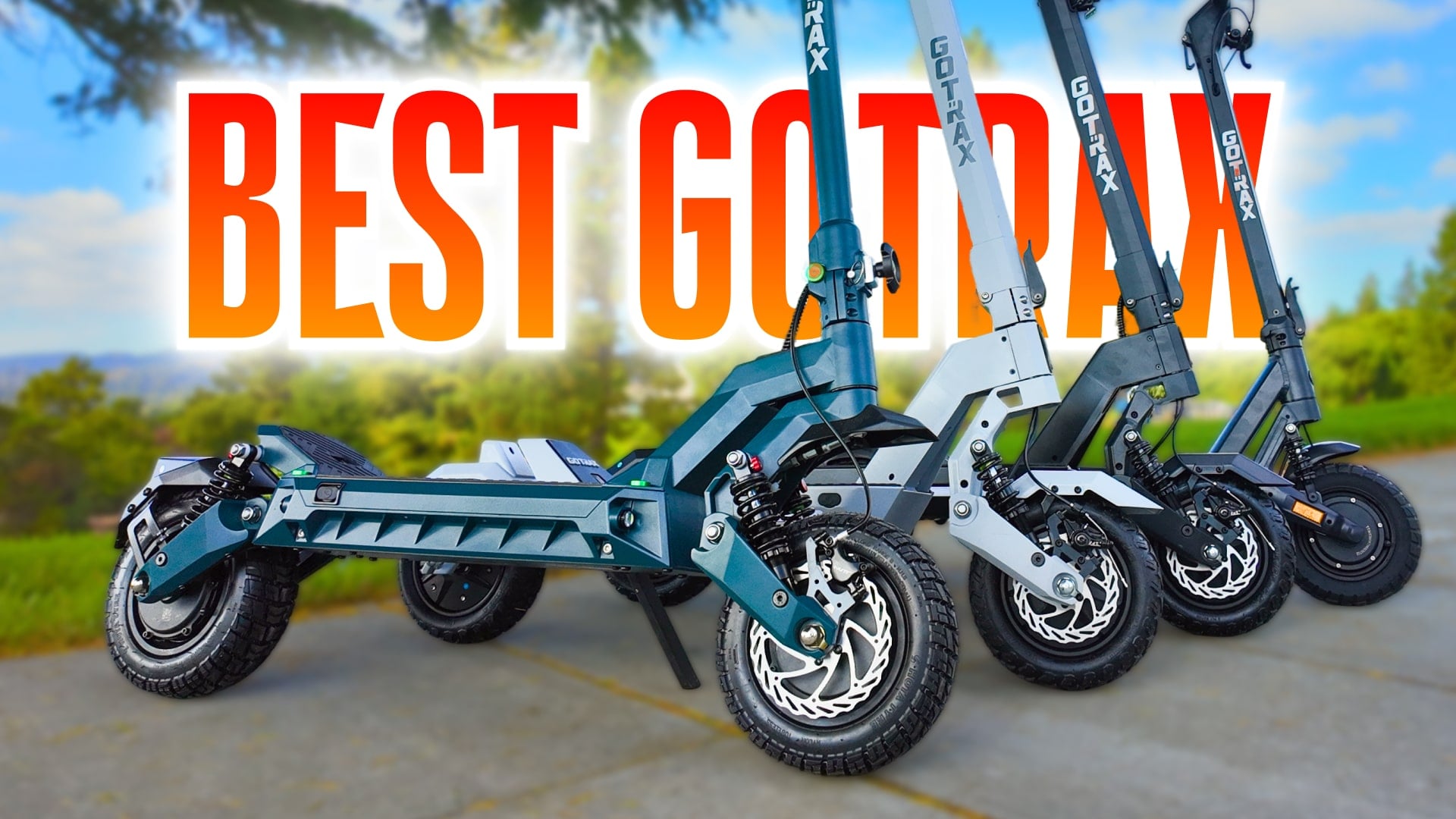
Not all GOTRAX scooters unlock the same way. The method depends entirely on your model. Using the wrong steps leads to frustration and false assumptions about damage or defects.
Check Your Model First
GOTRAX scooters fall into three categories based on their unlock system:
• Basic Models (GXL V2, XR Ultra, XR Elite, Apex): No passcode or app required. Unlock by holding the power button.
• Advanced Models (G3, G4, G Pro): Require a 3-digit (000) or 4-digit (0000) code after powering on.
• Bluetooth Models (G4, G Pro): Can unlock via the GOTRAX app if paired.
Look for clues on the display:
• A padlock icon means a passcode is active.
• A Bluetooth icon indicates app connectivity is possible.
• No icons? It’s likely a basic model.
Use the table below to confirm your unlock type:
| Model | Unlock Method | Default Code | App Support |
|---|---|---|---|
| GXL V2 | Power button hold | N/A | No |
| XR Ultra / Elite | Power + combo for transport mode | N/A | No |
| G3 | Power + 3-digit code | 000 | No |
| G4 | Power + 4-digit code or app | 0000 | Yes |
| G Pro | Power + code or app | 0000 | Yes |
Once you’ve identified your model, proceed to the correct unlock method.
Basic Power Unlock (GXL V2, XR, Apex)
If your scooter doesn’t have a digital lock icon, it uses a simple power activation system. These models rely on a mechanical button hold to activate the display and motor.
Power On in 5 Seconds
- Stand beside the scooter, upright and stable.
- Press and hold the power button (circle/line symbol) for 2–5 seconds.
- Wait for the LCD screen to light up—this confirms power is on.
- Gently twist the throttle while standing still. If the motor responds, you’re ready to ride.
Common Mistake: Tapping the button instead of holding it. A quick press won’t activate the system. You must hold for a full 2-5 seconds.
Fix: Scooter Won’t Power On
If the display stays dark, try these solutions:
• Charge the battery—even if stored recently, scooters can drain in storage.
• Hold the button longer—try a full 5 seconds.
• Check temperature—below 32°F (0°C) or above 113°F (45°C), the battery may refuse to start. Warm or cool the scooter for 15 minutes before trying again.
Kickstart Note: Some models like the GXL V2 require a kickstart: push the scooter to 2–3 mph before the motor kicks in. This is normal behavior, not a malfunction.
Digital Passcode Unlock (G3, G4, G Pro)

These models add a security layer: the motor won’t engage until you enter a code. The factory default is typically 000 for 3-digit models or 0000 for 4-digit models.
Enter the Default Code
- Press and hold the power button until the display turns on.
- If a padlock icon appears, code entry is required.
- Use the + (plus) or Up Arrow button to set the first digit to 0.
- Press the Power button once to confirm and move to the next digit.
- Repeat for the second and third digits.
- For 4-digit models (G4, G Pro), set the fourth digit the same way.
- Double-press the Power button quickly (within 1 second) to submit.
The padlock should disappear. Test the throttle to confirm the motor engages.
Pro Tip: Input slowly. Rushing causes missed inputs. Allow 1 second between actions.
Common Code Entry Errors
These mistakes prevent successful unlocking:
• Pressing + but not confirming with Power after each digit.
• Forgetting to double-press Power at the end—a single press won’t submit the code.
• Using 000 on a 4-digit model (try 0000 instead).
• Holding buttons too long—this triggers other functions instead of digit entry.
If the code is rejected, power off and try again. If it still fails, see the troubleshooting section below.
Bluetooth App Unlock (G4, G Pro)
If your scooter supports Bluetooth, you can unlock it remotely using your phone. This method bypasses physical button entry entirely.
Connect and Unlock in 60 Seconds
- Install the official GOTRAX app from the App Store or Google Play.
- Enable Bluetooth and Location Services on your phone.
- Power on the scooter.
- Open the app and tap “Connect Device.”
- Select your scooter from the list (e.g., “G4-XXXX”).
- Tap the unlock icon in the app.
The scooter should respond in 1–2 seconds. The padlock disappears from the display.
Note: Location access is required for Bluetooth scanning on modern phones. Grant permission when prompted.
Fix: App Won’t Connect
If pairing fails, try these solutions:
• Stay within 10–15 feet of the scooter during pairing.
• Forget other Bluetooth devices temporarily to reduce interference.
• Clear Bluetooth cache on Android (Settings → Apps → Bluetooth → Storage → Clear Cache).
• Restart the app and phone Bluetooth.
• Verify model compatibility—GXL V2 and XR series do not support Bluetooth.
If pairing fails repeatedly, “Forget” the scooter in your phone settings and re-pair from scratch.
Disable or Reset the Passcode

Tired of entering a code every time? You can disable the security lock or reset a forgotten one.
Turn Off Security Code (All Models)
To bypass code entry permanently:
- Power off the scooter.
- Hold the + (plus) and Power buttons together.
- Keep holding for 10 seconds until you hear a single beep.
- Release. Power on—the scooter should start without prompting for a code.
Security is now disabled. Re-enable anytime by repeating the process.
Set a Custom Code (G4 Only)
Replace the default 0000 with your own 4-digit code:
- Power off the scooter.
- Hold +, –, and Power buttons together (not just + and Power—manuals are wrong).
- Hold for 10 seconds until a confirmation beep.
- Use + and – to set each digit.
- Press Power once to advance to the next digit.
- After setting all four digits, double-press Power to save.
Security Tip: Use a code that isn’t easily guessed (avoid 1234, 0000). Write it down and store it safely.
Reset Forgotten Code (GoTrax Tour Only)
For the GoTrax Tour model specifically, use this hard reset:
- Power on the scooter.
- Enter
0,0,0using the + button. - Double-press Power.
- Hold Up Arrow + Power for 10 seconds.
- Wait for multiple beeps—this confirms reset.
- Power cycle and use default code.
Important: For G3/G4/G Pro models, no universal master code exists. If you forget your custom code, contact GOTRAX support with proof of purchase for a factory reset.
Exit Transportation Mode
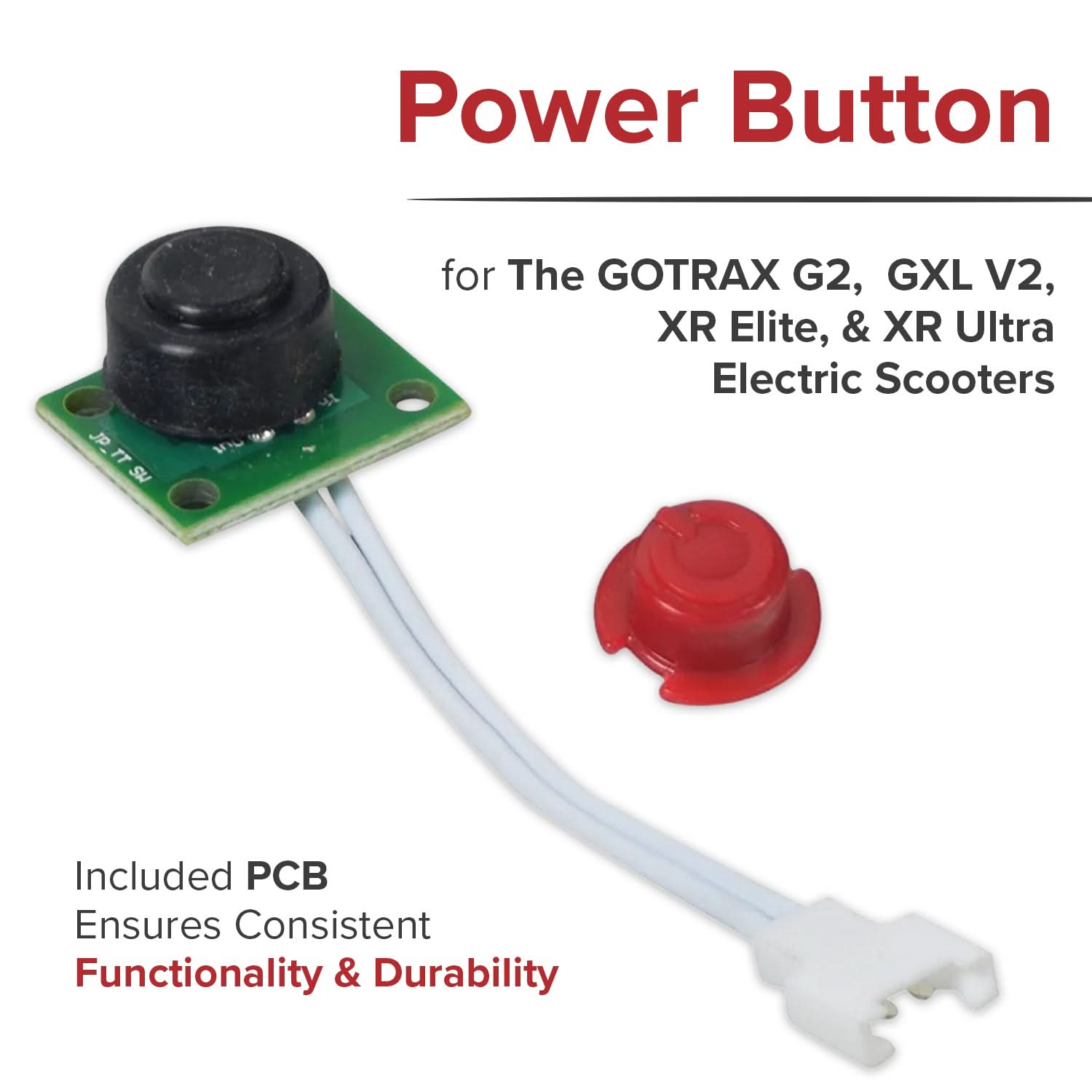
New scooters ship in Transportation Mode to prevent accidental activation during shipping. In this state, the display works, but the motor won’t engage.
Deactivate by Model
GXL V2:
• Hold Power Button + Brake Lever for 8 seconds.
• Listen for a beep or watch for flashing lights.
• Power off, wait 5 seconds, power back on.
G4:
• Press Power 3 times quickly, then immediately hold Brake + Throttle.
• Hold for 5 seconds. A beep confirms success.
XR Elite / XR Ultra:
• Hold Power Button + + (Plus) Button for 10 seconds.
• Power cycle and test.
General Fallback:
• Hold Power + Brake Lever for 5–10 seconds.
• Works on most models if the specific combo fails.
Critical: Ensure the battery is fully charged before attempting. Low voltage prevents mode switching.
Troubleshoot Unlock Failures
Even with correct steps, things go wrong. Here’s how to fix common issues.
Scooter Won’t Power On (Dark Display)
• Battery is dead: Plug in the charger. Wait 30–60 minutes—some units won’t show charging lights until partially charged.
• Loose internal connection: Open the deck (if under warranty, contact support first). Reseat the battery connector until it clicks.
• Circuit breaker tripped: Check near the battery for a small red reset button. Press it.
• Extreme temperatures: Move the scooter to room temperature for 15–20 minutes.
Passcode Not Accepted
• Verify digit count: Try both 000 and 0000.
• Press Power after each digit: This is required to advance to the next position.
• Double-press at the end: A single press won’t submit the code.
• Clean the console: Use isopropyl alcohol and a cotton swab to clean sticky buttons.
Throttle Unresponsive After Unlock
• Brake sensor stuck: Ensure brake levers are fully released. Clean sensors with compressed air.
• Kickstart required: Push the scooter to 2–3 mph before twisting the throttle (GXL V2, XR models).
• Speed mode too low: Press the mode button to cycle to higher speeds.
• Error code displayed? E1 = motor fault, E2 = sensor issue. See manual for full list.
App Won’t Unlock Scooter
• Model doesn’t support Bluetooth: GXL V2, XR series, and Apex cannot use the app.
• Location permission denied: Enable location access for the GOTRAX app.
• Phone Bluetooth overloaded: Turn off other devices or restart Bluetooth.
• App outdated: Update the GOTRAX app from the App Store or Google Play.
Maintain Physical Locks
Beyond electronic locks, GOTRAX scooters have folding stem locks that can jam.
Fix a Stuck Folding Lock
• Apply dry lubricant (PTFE spray) to the lock mechanism. Avoid oil—it attracts dirt.
• Wiggle the stem while pulling the release lever to relieve pressure.
• Clear debris with compressed air.
• Check direction: Some locks require a twist, not a pull. Forcing the wrong way can bend the pin.
Pro Tip: Lubricate the folding joint every 3 months for smooth operation.
Security and Maintenance Best Practices
Keep your scooter secure and unlocking reliably with these habits.
3-Layer Security Plan
- Electronic Lock: Always enable the passcode when parked.
- Physical Lock: Use a U-lock through the stem and a fixed object.
- GPS Tracker: Hide an AirTag or Tile inside the deck for recovery.
Prevent Unlock Issues
• Clean buttons weekly with a damp microfiber cloth.
• Store at 50–60% charge if unused for over two weeks.
• Calibrate monthly: Charge to 100%, then drain to 20%.
• Re-pair Bluetooth monthly: “Forget” the device and reconnect to clear glitches.
• Avoid rain exposure: Dry button areas with compressed air after wet rides.
When to Contact GOTRAX Support
Seek professional help if you forget a custom code and can’t reset it, the power button is unresponsive, Transportation Mode won’t deactivate after multiple tries, the display is damaged or shows error codes persistently, or the scooter is under warranty and shouldn’t be disassembled.
Support Information
• Website: gotrax.com/pages/faq
• Manuals: gotgotrax.com/pages/manuals
• Required Info: Model name, serial number (on deck near charging port), proof of purchase, and detailed issue description.
Frequently Asked Questions About Unlocking GOTRAX Scooters
Why does my GOTRAX scooter show a padlock icon?
The padlock icon indicates that your model has an active security code. You’ll need to enter the default code (000 for 3-digit models, 0000 for 4-digit models) or your custom code to unlock the motor.
How do I unlock my GOTRAX scooter if I forgot the code?
For the GoTrax Tour model, you can perform a hard reset using the Up Arrow + Power button combination. For G3, G4, and G Pro models, you’ll need to contact GOTRAX support with proof of purchase for a factory reset.
Why won’t my scooter turn on even after pressing the power button?
The battery may be deeply discharged. Connect the charger and wait 30-60 minutes before trying again. Also ensure you’re holding the power button for a full 2-5 seconds, not just tapping it.
Can I unlock my GOTRAX scooter with my phone?
Only G4 and G Pro models support Bluetooth app unlocking. Install the official GOTRAX app, enable Bluetooth and location services, then pair and use the unlock feature within the app.
What is Transportation Mode and how do I exit it?
Transportation Mode is a shipping setting that powers on the display but disables the motor. Exit it by holding specific button combinations: Power + Brake for 8 seconds on GXL V2, or Power x3 + Brake/Throttle on G4 models.
Key Takeaways for Unlocking Your GOTRAX Scooter
Unlocking your GOTRAX scooter isn’t guesswork—it’s about matching the right method to your specific model. Basic models like the GXL V2 require only a 2-5 second power button hold, while advanced models like the G3, G4, and G Pro need a digital passcode entry or app unlock. Always check for Transportation Mode on new scooters, as this common oversight leaves riders stranded thinking their scooter is broken. Keep this guide handy, maintain your scooter regularly, and ride with confidence.