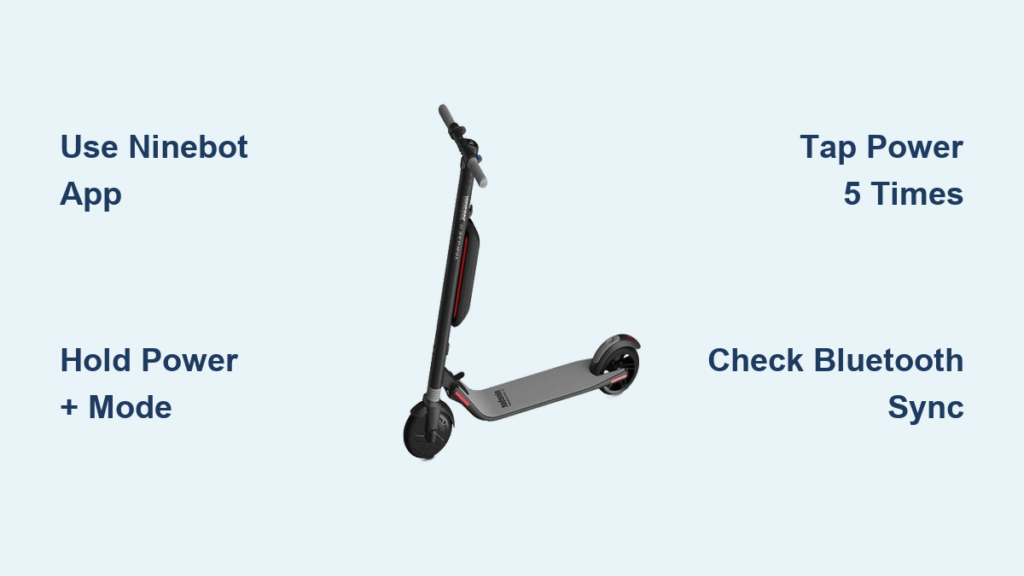
Your Ninebot scooter likely displays speed in kilometers per hour (KPH) by default, especially if purchased outside the U.S. But if you’re used to miles per hour (MPH), constantly converting numbers while riding gets annoying fast. The good news: switching your Ninebot scooter to MPH is possible, and often simple. Whether you own a Ninebot Max, F Series, E2 Pro, or older Segway model, this guide delivers the exact steps to change your display from KPH to MPH using either the Ninebot app or hardware button combinations.
You’ll learn model-specific instructions, what data changes after the switch (like range and odometer), and how to troubleshoot when the setting doesn’t update. No fluff, no guesswork. Just clear, actionable methods that work based on verified user reports and technical documentation.
Use the Ninebot App to Switch to MPH

The fastest and most reliable way to switch to MPH applies to Bluetooth-enabled scooters like the Ninebot Max and F Series. This method changes units across both the app and scooter display.
Open Profile and Access Settings
Launch the Ninebot by Segway app, make sure your scooter is powered on and connected via Bluetooth. Tap the Me tab in the bottom-right corner. Then, tap the hexagon icon or profile picture in the top-left. Look for a gear icon or bolt icon. This opens your device settings.
Don’t skip checking your connection status. If the app shows “Disconnected,” the setting won’t sync even if you change it.
Switch to Imperial Units
Scroll through the menu until you see “Imperial/Metric System” or simply “Units.” Tap it. Select “Imperial” to switch from Metric (KPH/km) to Imperial (MPH/miles). Confirm the change if prompted.
After selecting Imperial, the following updates occur:
• Speed displays in MPH
• Range and trip distance convert to miles
• Odometer updates to total miles
Critical sync step: Tap the back arrow twice to return to the main dashboard. Some users report the scooter display doesn’t update unless you fully exit the settings screen. Closing and reopening the app can also force a refresh.
Ninebot F Series Specific Steps
For the F2, F30, F40, and other F Series models, the path is identical to the Max. Navigate through Home, Me, Hexagon Icon, Settings, then Imperial/Metric System. Select Imperial.
Example conversions after switching:
• 40 km range becomes approximately 24.8 miles
• 25 km/h max speed displays as approximately 15.5 mph (display only; actual speed unchanged)
If your scooter disconnects during setup, the app saves your preference and syncs the next time it reconnects.
Hardware Button Methods for MPH Conversion
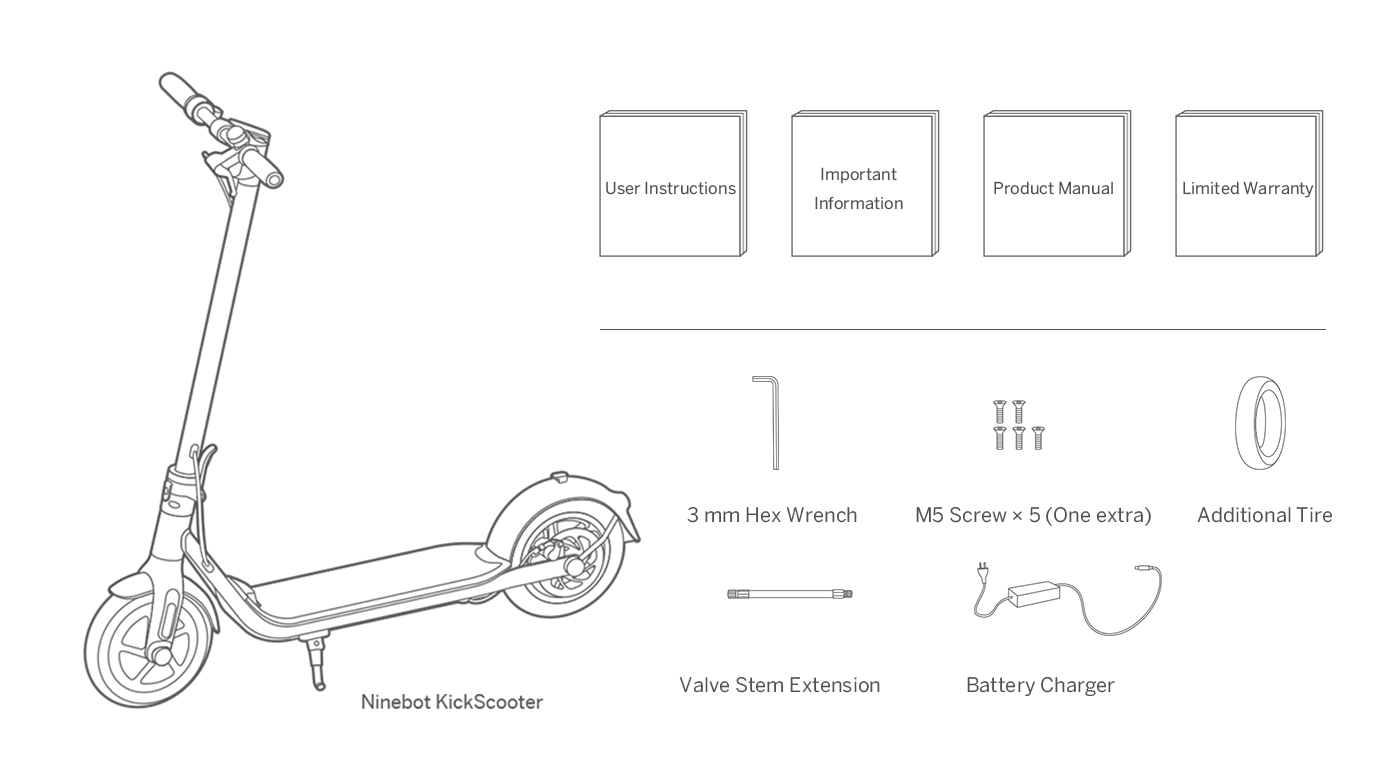
Some models don’t require the app. You can toggle units directly on the scooter using physical buttons. This is ideal if your phone is unavailable or Bluetooth fails.
Hold Power and Mode Buttons Together
This method works on Segway Ninebot S, X Series, and some Max variants.
Follow these steps:
- Power on the scooter.
- Press and hold both the Power button and the Mode button simultaneously.
- Maintain the hold for exactly 5 seconds.
- The display will cycle through settings. Watch for KPH or MPH.
- Once MPH appears, press the Mode button once to toggle to MPH.
- Release all buttons. The setting saves automatically.
Pro tip: If nothing happens, try increasing pressure or ensuring both buttons register simultaneously. Some units are sensitive to timing, so hold steadily for a full 5 seconds.
Tap Power Button Five Times (E2 Pro Only)
This rapid-tap sequence is exclusive to the Segway Ninebot E2 Pro (eKickscooter).
Follow these steps:
- Power on the scooter.
- Press the Power button five times quickly in succession.
- The display instantly toggles between KPH and MPH.
- No confirmation needed. The change saves immediately.
Key technique: Presses must be fast and rhythmic, within 2 to 3 seconds total. Slow or spaced-out taps register as power cycles, not commands. This method bypasses the app entirely and stores the setting in the scooter’s firmware.
What Changes After Switching to MPH

Changing units affects more than just speed. Here’s what updates across your scooter and app:
| Data Point | Before (Metric) | After (Imperial) |
|---|---|---|
| Current Speed | 25 km/h | ~15.5 mph |
| Remaining Range | 40 km | ~24.8 miles |
| Trip Distance | 8.2 km | ~5.1 miles |
| Total Odometer | 127 km | ~78.9 miles |
| Speed Limit Alerts | 30 km/h | ~18 mph |
Important notes about the conversion:
• Performance remains unchanged. Your scooter still maxes out at the same physical speed.
• The conversion is digital. No sensor recalibration occurs. Only the display unit changes.
• All values recalculate. Trip logs, ride history, and future data all use miles going forward.
Troubleshooting When MPH Setting Won’t Save
Even with the right steps, problems happen. Here’s how to fix them.
Display Stays in KPH After App Change
This issue typically occurs because the app didn’t push the update to the scooter.
Try these fixes in order:
• Exit settings completely. Tap back twice.
• Close the app and reopen it.
• Reconnect Bluetooth.
• Restart the scooter and retry the entire process.
If the app lacks a unit option entirely, check these potential causes:
• Update to the latest version of Ninebot by Segway app.
• Check if your phone’s region is set to a country that forces Metric. Older app versions mirrored phone settings.
Button Combo Methods Don’t Work
This usually stems from incorrect timing or an unsupported model.
Try these solutions:
• For Power plus Mode hold: Hold for exactly 5 seconds. Use a timer if needed.
• For 5x Power tap: Tap rapidly, like double-clicking a mouse, but five times.
• Power off completely, wait 10 seconds, then repeat the sequence.
If neither method works, confirm your model supports hardware toggling. The F Series and Max G2 typically require the app method instead.
Model-by-Model Quick Reference
Use this table to identify your scooter’s method:
| Model | Primary Method | Action Required |
|---|---|---|
| Ninebot Max | App | Me, Settings, Imperial/Metric |
| Ninebot F Series | App | Same as Max |
| E2 Pro | Hardware (5x tap) | Press Power button 5x quickly |
| S/X Series | Hardware (hold) | Hold Power plus Mode for 5 seconds |
| Legacy Models | App or Phone System | Check phone region or More tab |
Rule of thumb: If your scooter has Bluetooth, try the app first. If no app response, test the 5-second hold or 5-tap method based on your model.
Final Tips for Successfully Changing to MPH
Before starting, ensure your Ninebot app and scooter firmware are current. Older versions may lack unit options entirely.
Double-check your model before attempting button methods. The E2 Pro’s 5-tap trick won’t work on a Max, and vice versa.
Test immediately after switching. Take a short ride to verify speed reads correctly in MPH.
If stuck at any point, reset both scooter and phone, then reconnect and try again.
Switching your Ninebot scooter to MPH should take less than two minutes once you know the right method for your model. Whether you’re commuting or cruising, seeing speed and distance in familiar units makes riding safer and more intuitive.
Now you’re ready. Open the app, press the buttons, and ride in miles.
Frequently Asked Questions About Changing Ninebot Scooter to MPH
Can I change my Ninebot scooter from KPH to MPH without the app?
Yes. Some models support hardware button methods. The E2 Pro requires five rapid taps of the Power button. The S and X Series use a 5-second hold of Power plus Mode buttons together.
Will changing to MPH affect my scooter’s actual top speed?
No. The conversion is purely digital. Your scooter still reaches the same physical speed. Only the display unit changes from kilometers to miles.
Why won’t my scooter display update after changing the app setting?
The app may not have synced the change to your scooter. Try exiting the settings completely, closing and reopening the app, or restarting both the scooter and your phone before retrying.
Does the Ninebot Max support hardware button conversion?
Some Max variants support the Power plus Mode button method, but the app is the primary recommended route. Check your model manual if the button method fails.
Will my trip history convert to miles automatically?
Yes. Once you switch to Imperial units, all trip data, odometer readings, and range estimates recalculate and display in miles going forward. Previous data in kilometers converts to miles.