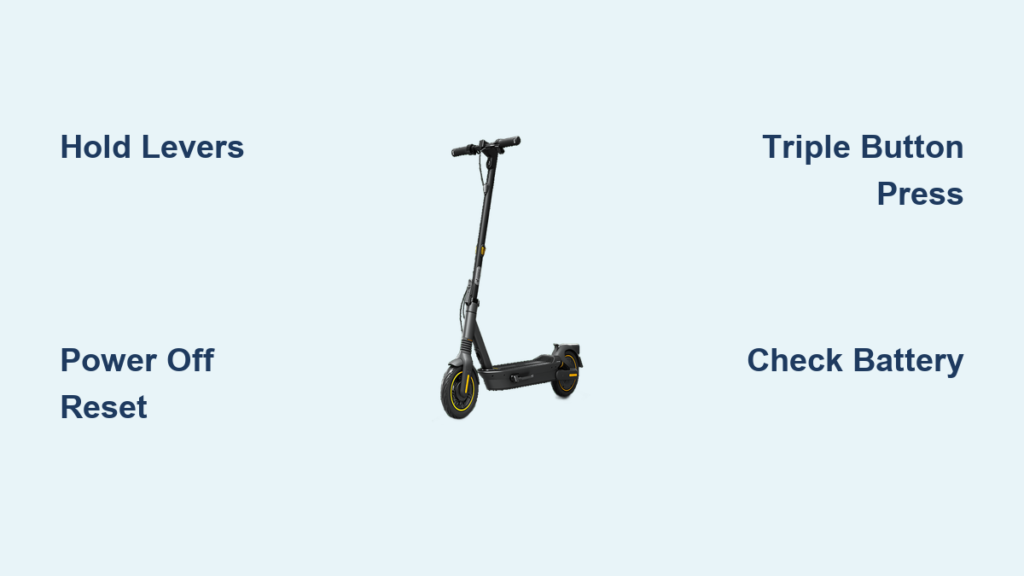
Is your Ninebot scooter acting up, failing to connect to the app, freezing on startup, or showing strange error messages? A factory reset can often fix these issues fast. Whether you’re troubleshooting connectivity problems, preparing your scooter for resale, or dealing with a frozen display, knowing how to reset a Ninebot scooter is essential for smooth operation.
This guide delivers clear, step-by-step instructions for all major reset methods tested across models like the Ninebot Max G30, F2 Plus, S series, and ES models. You will learn exactly when and how to perform each reset, what to expect during the process, and how to set up your scooter again afterward.
Reset When Scooter Is Off

Use this method if your scooter powers off normally and responds to button inputs. It is the most common fix for Bluetooth pairing issues and minor software glitches.
Hold Levers and Power On
- Make sure the scooter is completely powered off.
- Press and hold both the throttle lever and brake lever fully down.
- While holding both levers, press the power button to turn the scooter on.
- Keep holding the levers for 3 to 5 seconds after the power button is pressed.
- Release the levers once the display flickers or reboots.
- The scooter will restart with default settings.
This reset clears user preferences, removes saved Bluetooth devices, and resets ride modes. It does not delete firmware or affect motor performance.
Reset While Turning Off
Try this alternative if the power-on method does not work. Some models, like the Ninebot F2 Plus, respond better to a reset during shutdown.
Hold Levers and Power Off
- Turn the scooter on normally.
- Immediately press and hold both the throttle and brake levers.
- While holding them, press the power button to turn the scooter off.
- Continue holding the levers for 5 to 10 seconds until the scooter fully shuts down.
- Wait 10 seconds, then power it back on.
On some models, the display will show “14” during this process, which confirms the reset was successful. This method is especially effective for deep-clearing corrupted settings or forgotten passcodes.
Hard Reset with Three Buttons

When standard resets fail, use this aggressive approach to force a system reboot. Ideal for frozen displays or unresponsive controls.
Press Power, Throttle, and Brake
- Ensure the scooter is on.
- Simultaneously press and hold the power button, the throttle lever, and the brake lever.
- Hold all three for 3 to 5 seconds.
- Release when the screen flickers or turns off.
- Wait 10 seconds, then restart normally.
This triple-input reset bypasses temporary software locks and often resolves stubborn boot loops. Practice the motion before starting to ensure precise coordination.
Check Battery First
Never attempt a reset with low power. A weak battery can interrupt the process and cause firmware instability.
Ensure 20-30% Charge
Plug in the scooter if the battery is below 20%. Wait until it reaches at least 30% before resetting. Use the original charger to avoid voltage issues.
Low battery during a reset may lead to boot failure or permanent software corruption. If the scooter will not charge or show any lights, the issue may be hardware-related, not software.
Recognize Reset Success
After performing a reset, look for these visual cues to confirm it worked.
Look for Reboot Signs
Screen flicker or blackout during the sequence indicates the system is rebooting. A fresh startup animation with no prior customizations means the reset worked. The scooter will show default speed mode, usually Drive or Normal. There will be no auto-connect to phone because Bluetooth pairing was cleared.
Open the Segway-Ninebot app and try pairing again. If it asks to reconnect, the reset succeeded. If the scooter behaves the same as before, proceed to firmware updates or hardware checks.
Reconnect After Reset
Your scooter is now like new, with clean settings and no saved data. You must reconfigure everything.
Re-Pair with the App
- Open the Segway-Ninebot App.
- Enable Bluetooth on your phone.
- Select Add Device and follow pairing prompts.
- Re-set your preferences including ride modes, auto-lock timer, light settings, and speed limits.
After reset, always check for firmware updates in the app. Outdated firmware can cause recurring issues.
Fix Registration Blocks
Buying a used Ninebot? You might hit a roadblock even after a reset.
Bypass Previous Owner Lock
A factory reset does not remove cloud-linked ownership. If the app says Already Bound, the previous owner must unbind it remotely. Contact them and ask them to open their app, go to device settings, and tap Unbind or Remove Device.
If you do not have access to the previous owner, provide proof of purchase to Ninebot support for ownership transfer assistance. This is critical for second-hand G30 Max and ES series scooters.
Try Firmware Update
Persistent errors after reset often stem from outdated software.
Install Latest Firmware
- After reset, connect to the app.
- Go to Device Settings and select Firmware Update.
- Download and install any available update.
- Do not turn off the scooter during installation.
This takes 5 to 10 minutes. Let it complete fully. Firmware updates fix bugs, improve stability, and patch security flaws.
Avoid Common Mistakes
Even small errors can make a reset fail.
Do Not Rush the Timing
Holding levers for less than 3 seconds may not trigger the reset. Releasing too early interrupts the signal. Wait for visual feedback like flicker, code 14, or reboot.
Using only one lever is a common mistake. Both throttle and brake must be pressed simultaneously. Also, do not skip the 10-second wait after a power-off reset, as this lets the system finalize data erasure.
Prepare for Resale
Selling your Ninebot? A reset protects your privacy and boosts buyer trust.
Clean Data Before Transfer
- Perform a full reset using the power-off method.
- Confirm Bluetooth devices are gone.
- Remove any personal information from the app, including home address and ride history.
- Provide the buyer with reset confirmation, such as showing code 14.
Include the original charger and manual. A clean reset makes the scooter easier to sell and sets the new owner up for success.
When Reset Fails
If your scooter still will not turn on or connect, the problem may be deeper.
Check for Hardware Issues
No lights at all indicates you should test with a different charger. Loose wiring may require inspecting under the deck if you are experienced. BMS failure is common after water exposure or hard drops.
Contact Ninebot support or visit an authorized service center. Software resets will not fix broken circuits or damaged batteries.
Compare Reset Methods

| Method | Best For | Success Signal | Difficulty |
|---|---|---|---|
| Power-On Hold | General glitches | Reboot or flicker | Low |
| Power-Off Hold | Deep clear, F2 Plus | Code 14 | Medium |
| Triple Button | Frozen system | Screen flash | Medium |
Choose based on your scooter’s response and model type.
Frequently Asked Questions About Resetting Ninebot Scooters
How do I reset my Ninebot scooter to factory settings?
Hold both the throttle and brake levers while pressing the power button. For the standard method, start with the scooter off, hold both levers, then turn the power on and hold for 3 to 5 seconds until the display flickers or reboots.
Will resetting my Ninebot scooter delete all my data?
Yes, a factory reset erases all user settings including speed limits, display preferences, Bluetooth pairings, and any custom configurations. It does not delete the firmware or affect the scooter’s core operating system.
Why does my Ninebot scooter show code 14 during reset?
Code 14 is a confirmation indicator that appears on some models during the power-off reset method. When you see this code while holding the levers and powering off, it means the factory reset was successful.
Can I reset my Ninebot scooter if it will not turn on?
If the scooter is completely unresponsive, first check the battery charge. Ensure it has at least 20 to 30% charge. If there are still no lights or response after charging, the issue is likely hardware-related, not software.
Does a factory reset remove the previous owner account?
No, a factory reset clears local settings but does not remove the cloud-linked ownership. If you bought a used scooter, the previous owner must unbind the device from their app account, or you must contact Ninebot support with proof of purchase for ownership transfer.
Key Takeaways for Resetting Your Ninebot Scooter
Resetting your Ninebot scooter is the fastest way to clear software bugs and restore performance. Use the power-on lever hold for everyday fixes, the power-off sequence for deeper issues, and the triple-button press when nothing else works. Always start with a charged battery, watch for visual feedback like screen flicker or code 14, and re-pair via the app afterward. For second-hand units, confirm the device is unbound from the previous owner before purchase. If problems persist after reset, update the firmware or seek professional help. With this guide, you have the tools to keep your scooter running like new.